AI Image Prompts: Prompt Library and Generator
No prompt engineering required. Browse a prompt library, use the image prompt generator, or save a prompt template as a JSON style template.
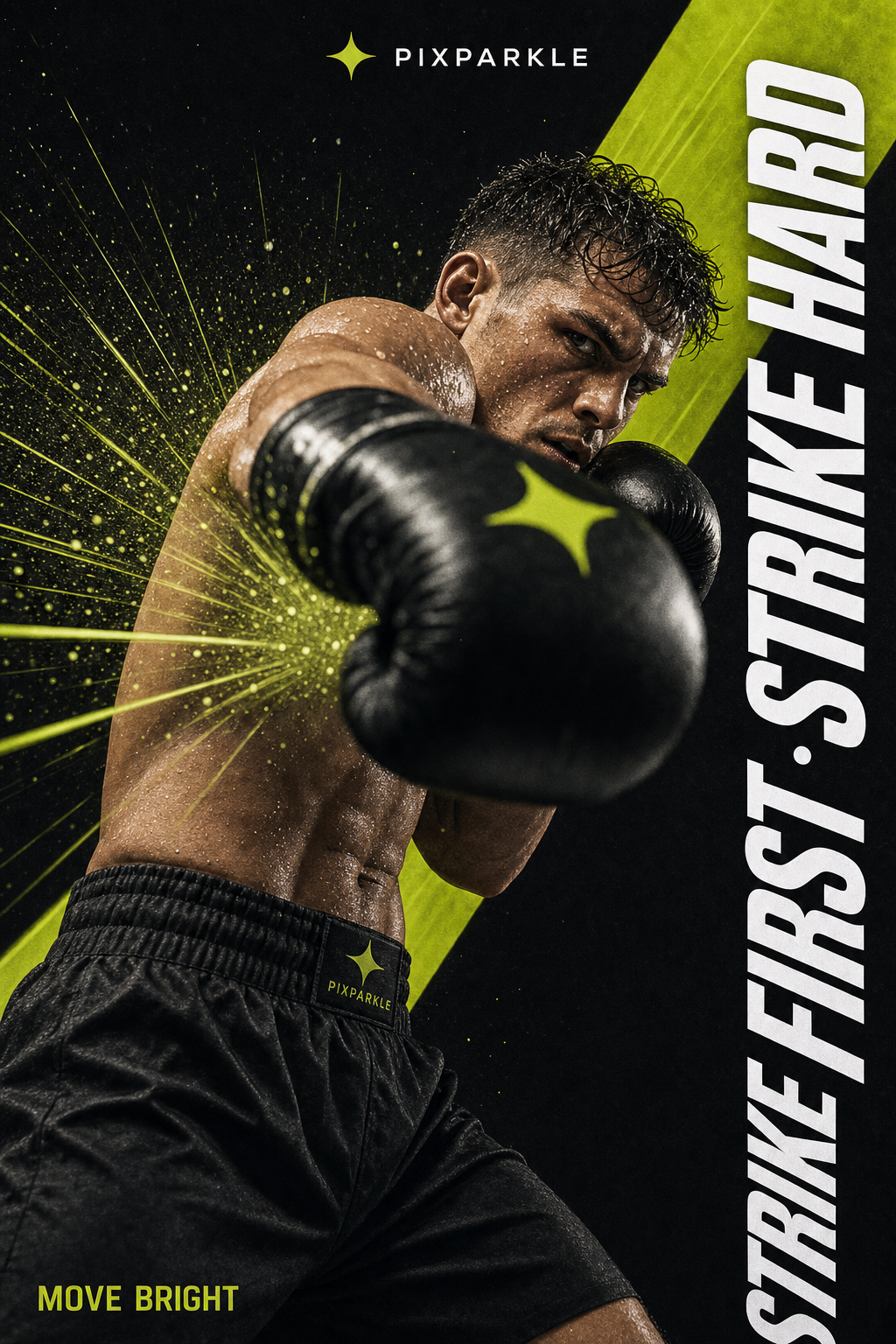
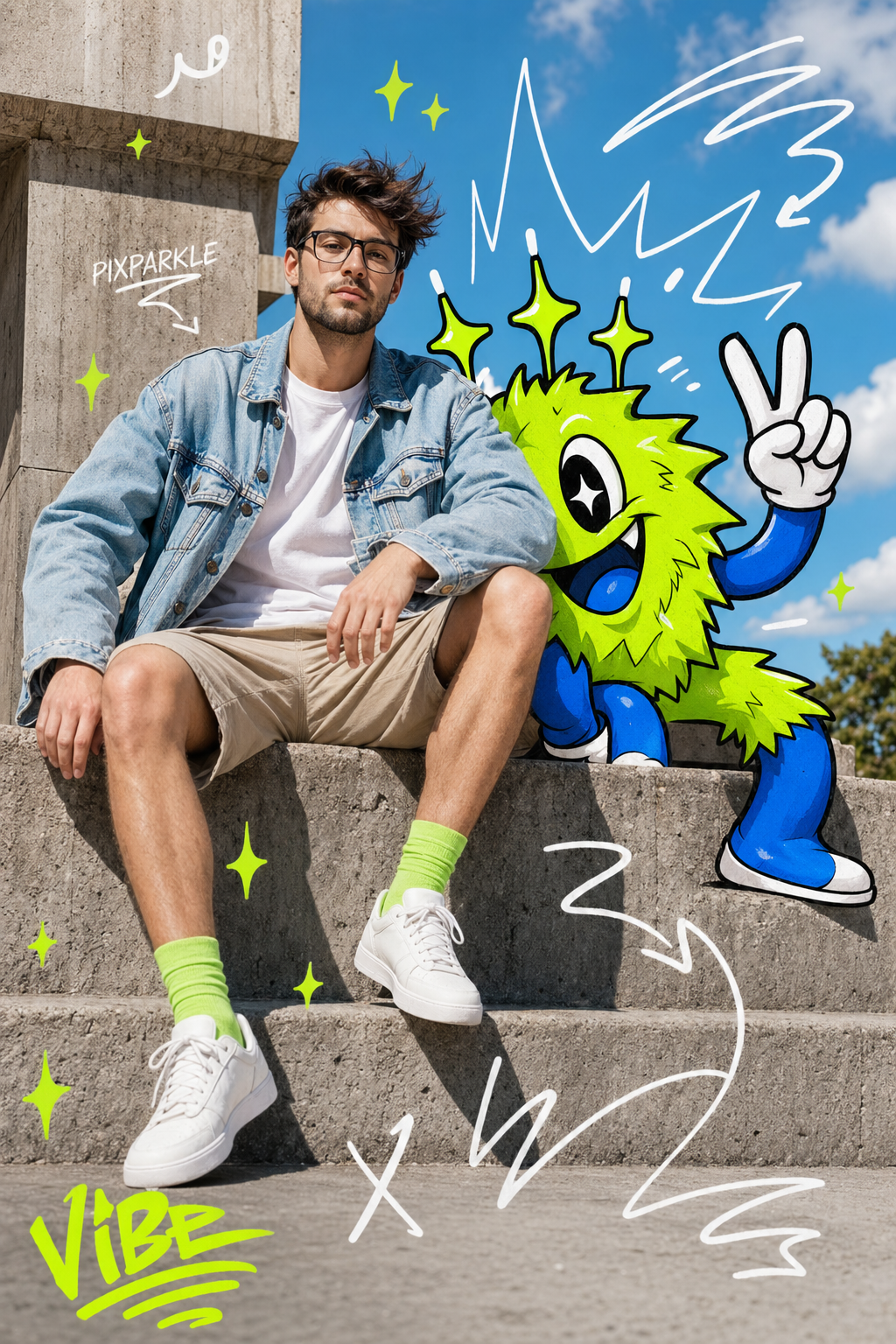
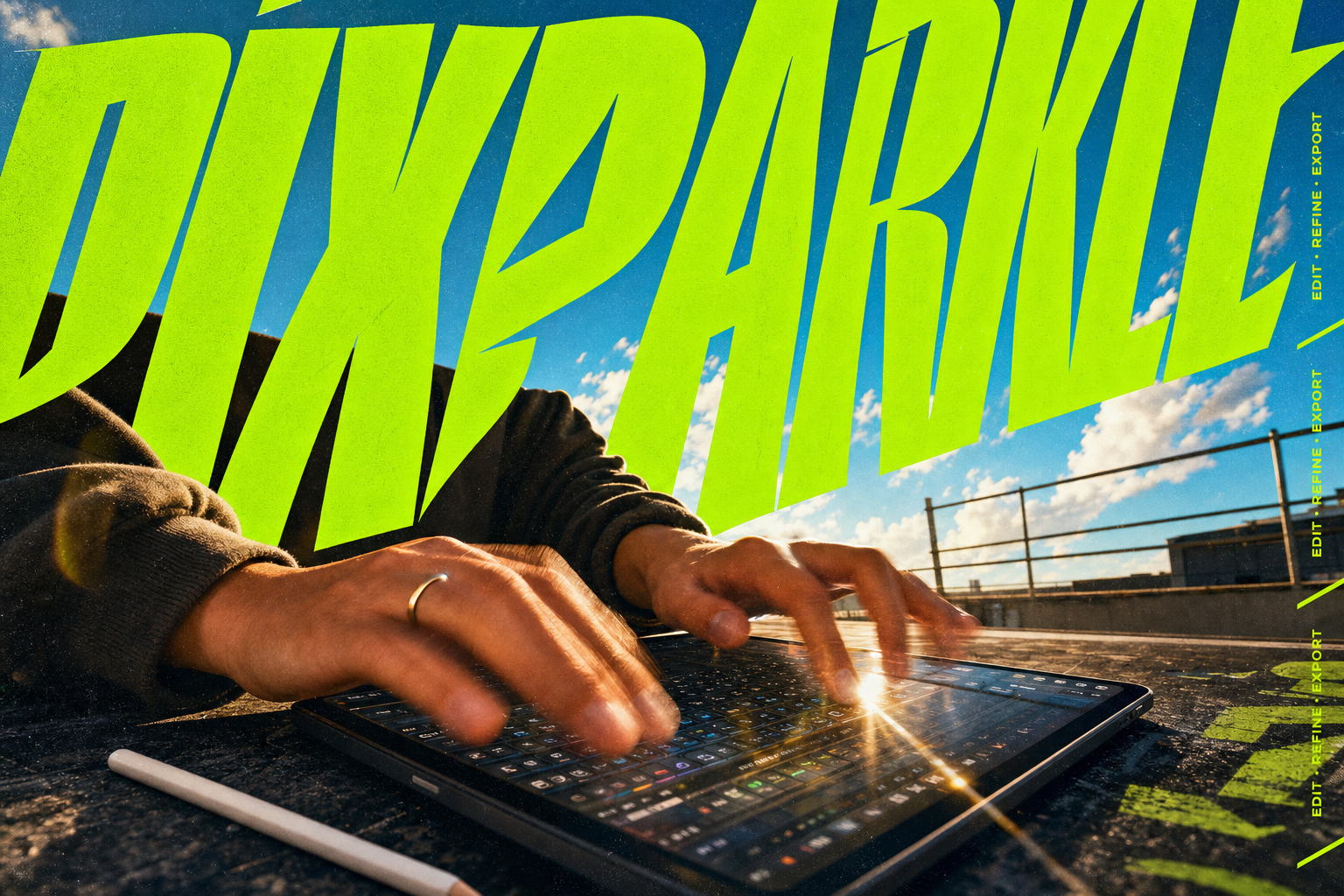
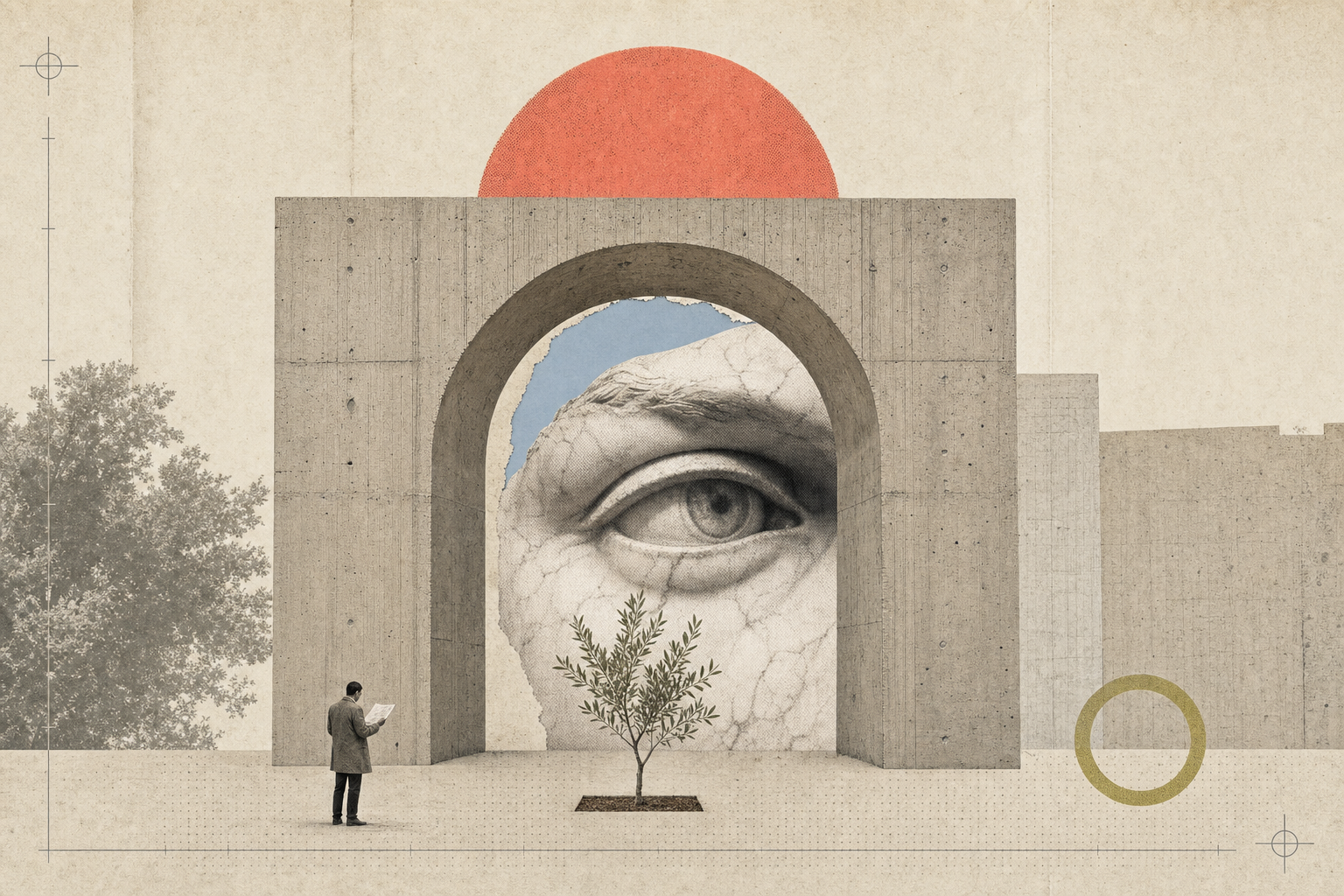



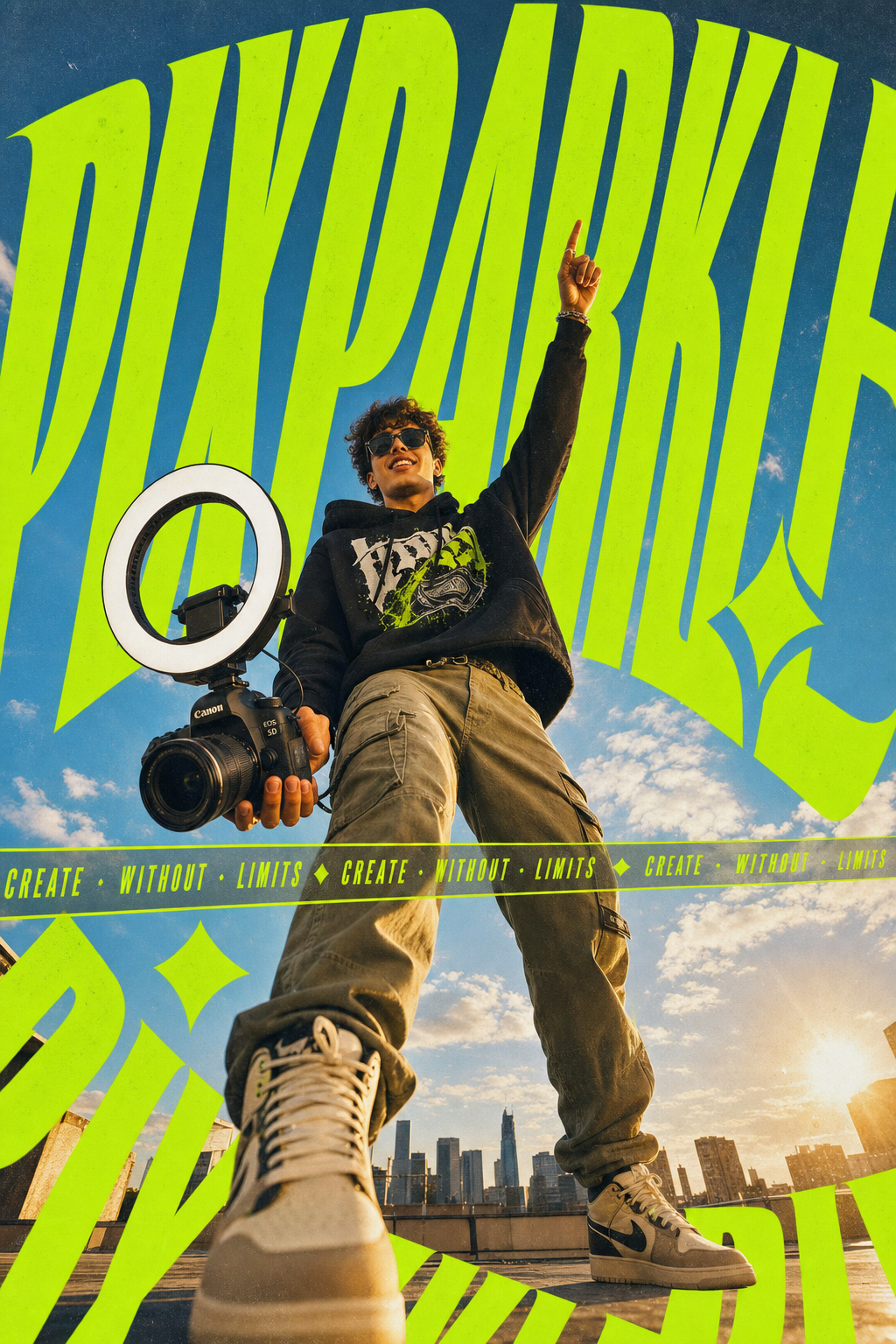
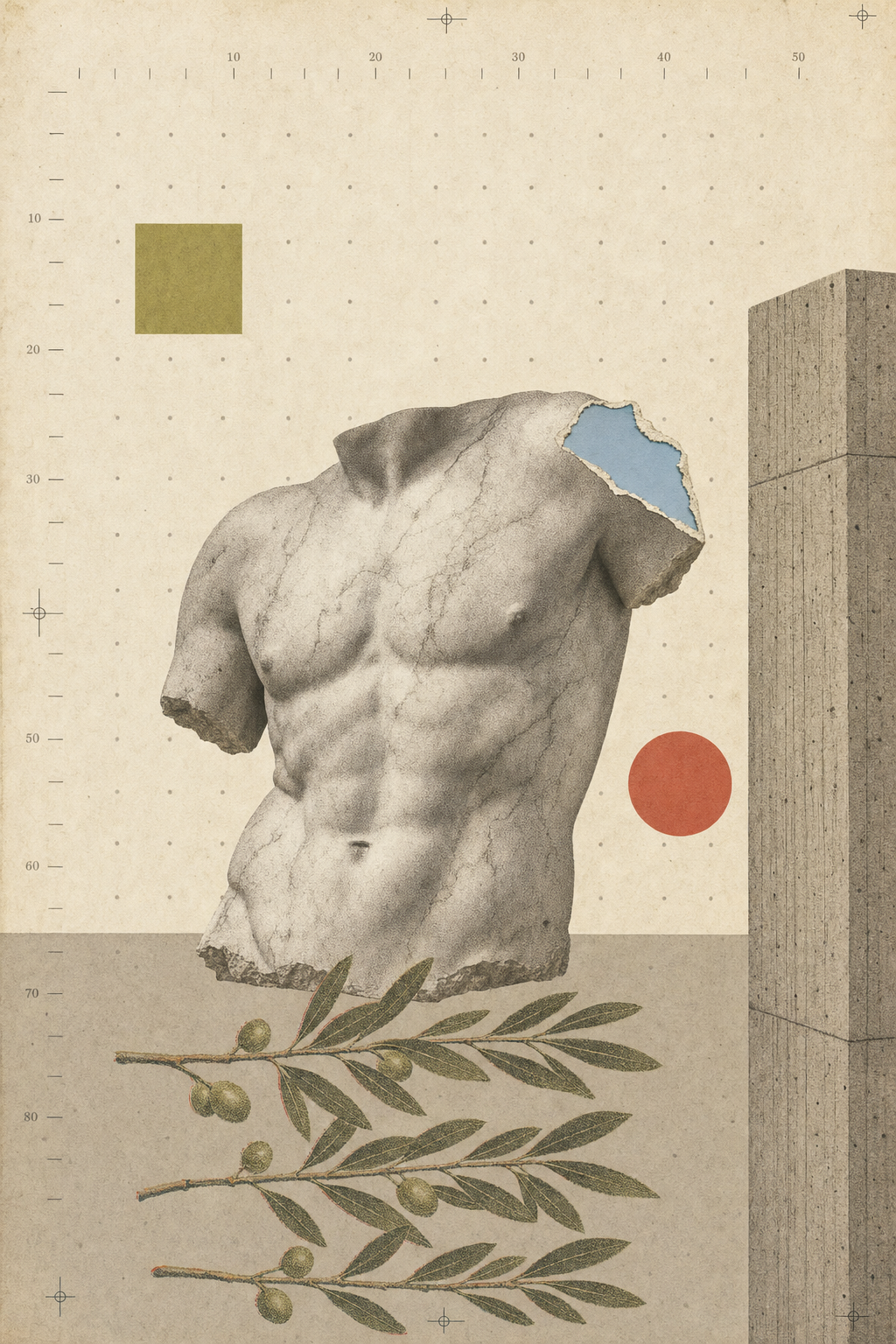
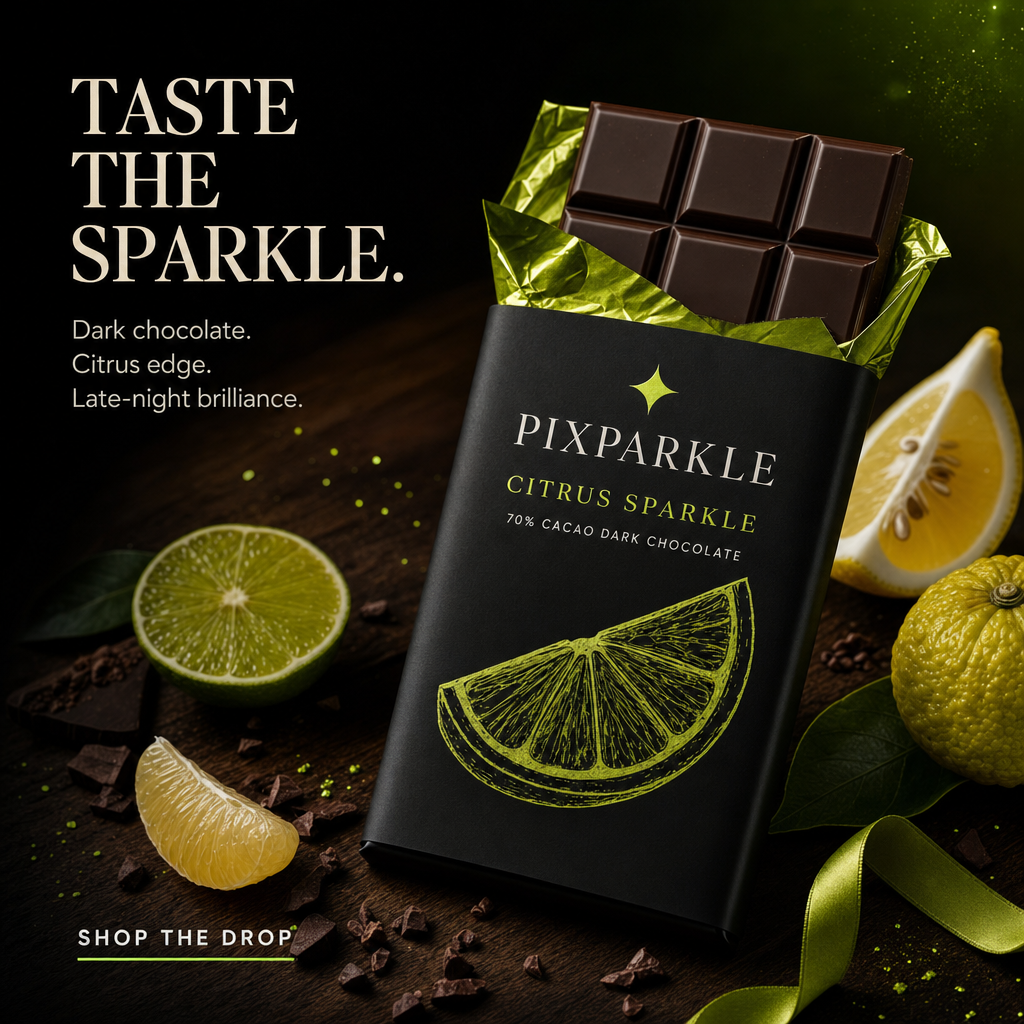
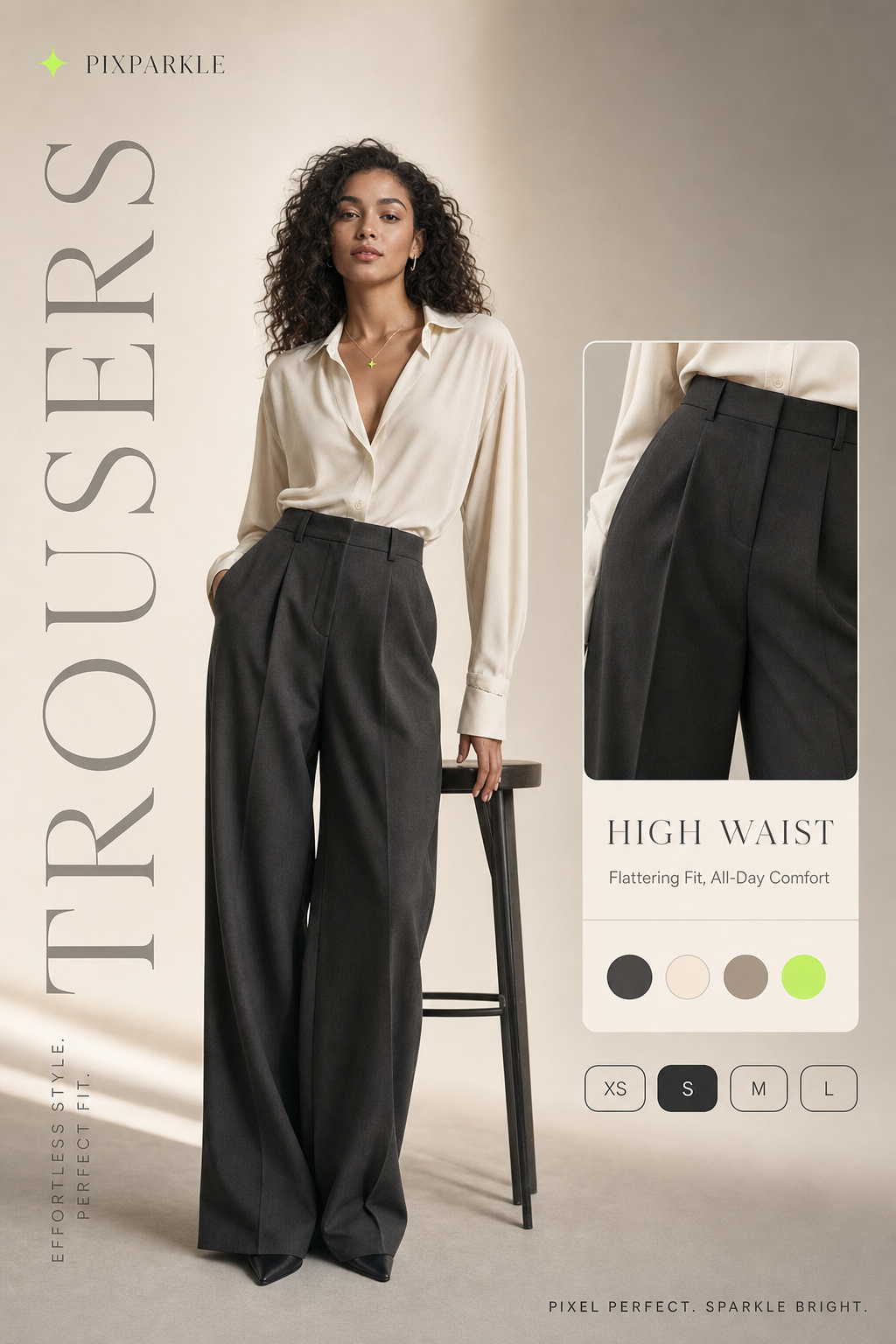
How to Use the AI Image Prompt Library in 4 Steps
AI image prompts are text instructions that tell an AI image model what to generate. Browse curated prompts, copy any that fits, tweak the subject or mood to match your brand, and generate your image without writing a single line from scratch.
01 Browse
Scroll the prompt library and filter by style or mood. Every prompt is production-tested, so you can pick one as a starting point rather than staring at a blank box.
02 Copy & Paste
Hit Copy on any prompt card and paste it straight into the image prompt generator below or any image model you use. No reformatting needed.
03 Tweak
Swap the subject, adjust the lighting word, or change the aspect ratio to match your brand. One or two field changes is usually all it takes.
04 Generate
Send the prompt and your image arrives in seconds. Not happy with one detail? Reply in chat to refine it without starting over.
Solve Image Prompt Pain With a Curated Prompt Library
Stop wrestling with blank prompts, model-specific quirks, fragmented pipelines, and prompts you can never find again. Here is what changes when you have a structured library.
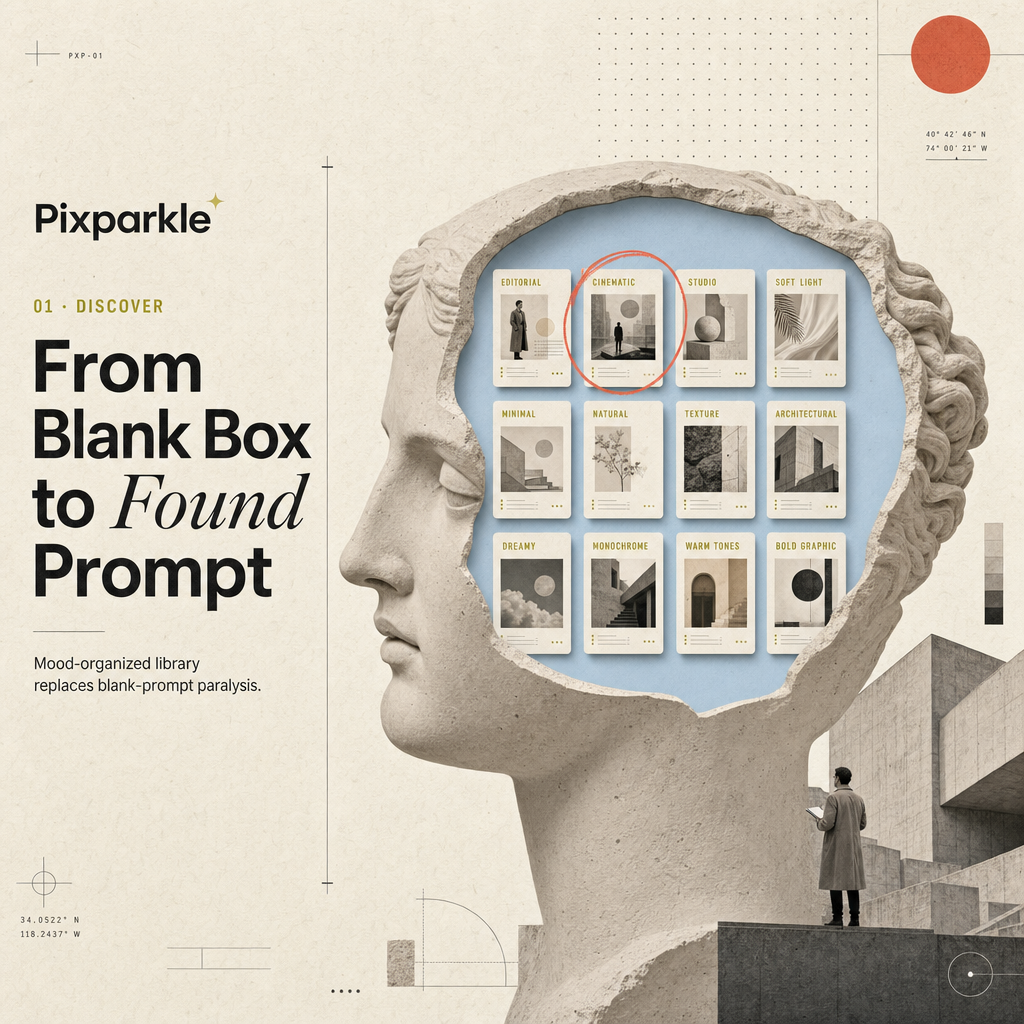
Find an AI Image Prompt for Any Mood in Seconds
Blank-prompt paralysis is a time tax. You know the feeling: the model is ready, but the words are not. Browse a library of prompts organized by mood and style, spot the one that fits, and copy it. Your creative energy goes to the actual image, not to figuring out what to type first.
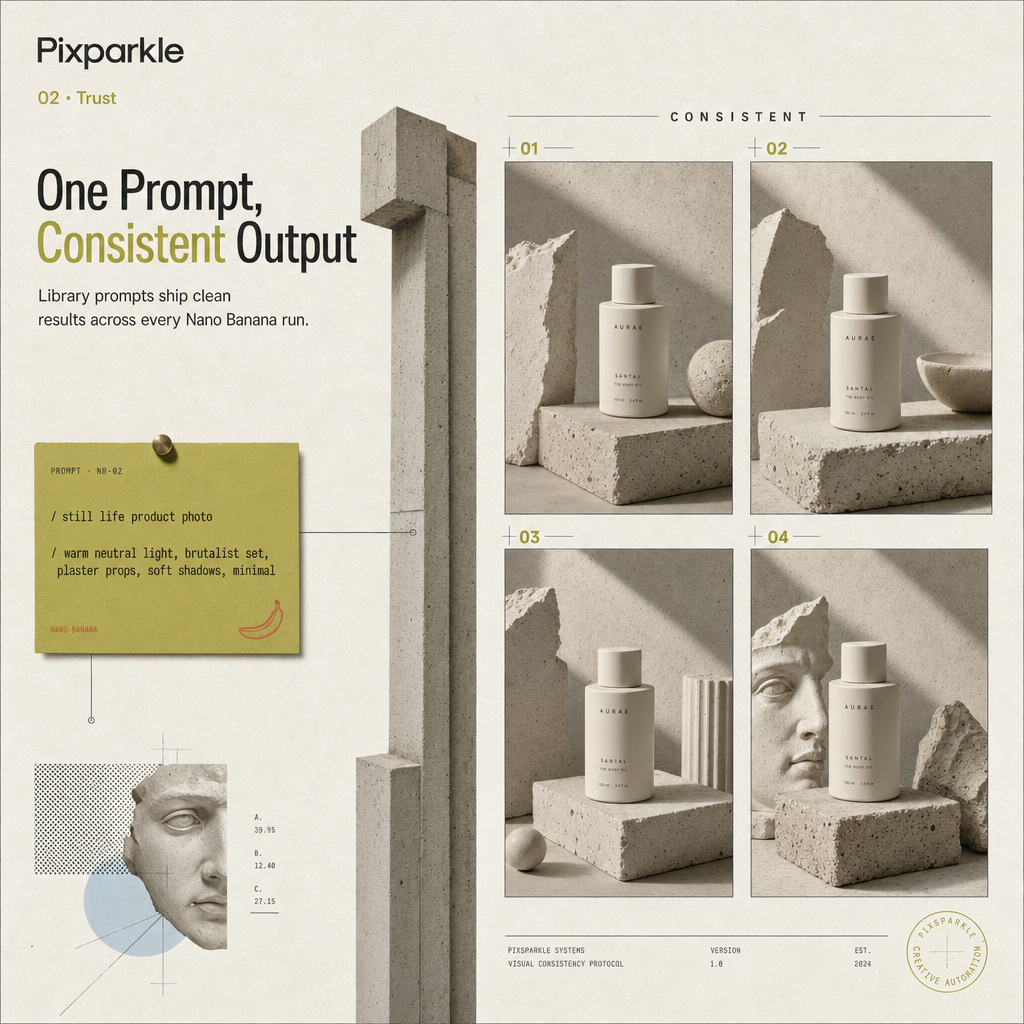
Trusted Across Nano Banana Prompts Workflows
Each prompt in the library is tested on production models so it ships clean results without per-model guesswork. Use the same structured brief across a full Nano Banana Prompts workflow and get consistent output on every run, not just on lucky first attempts.
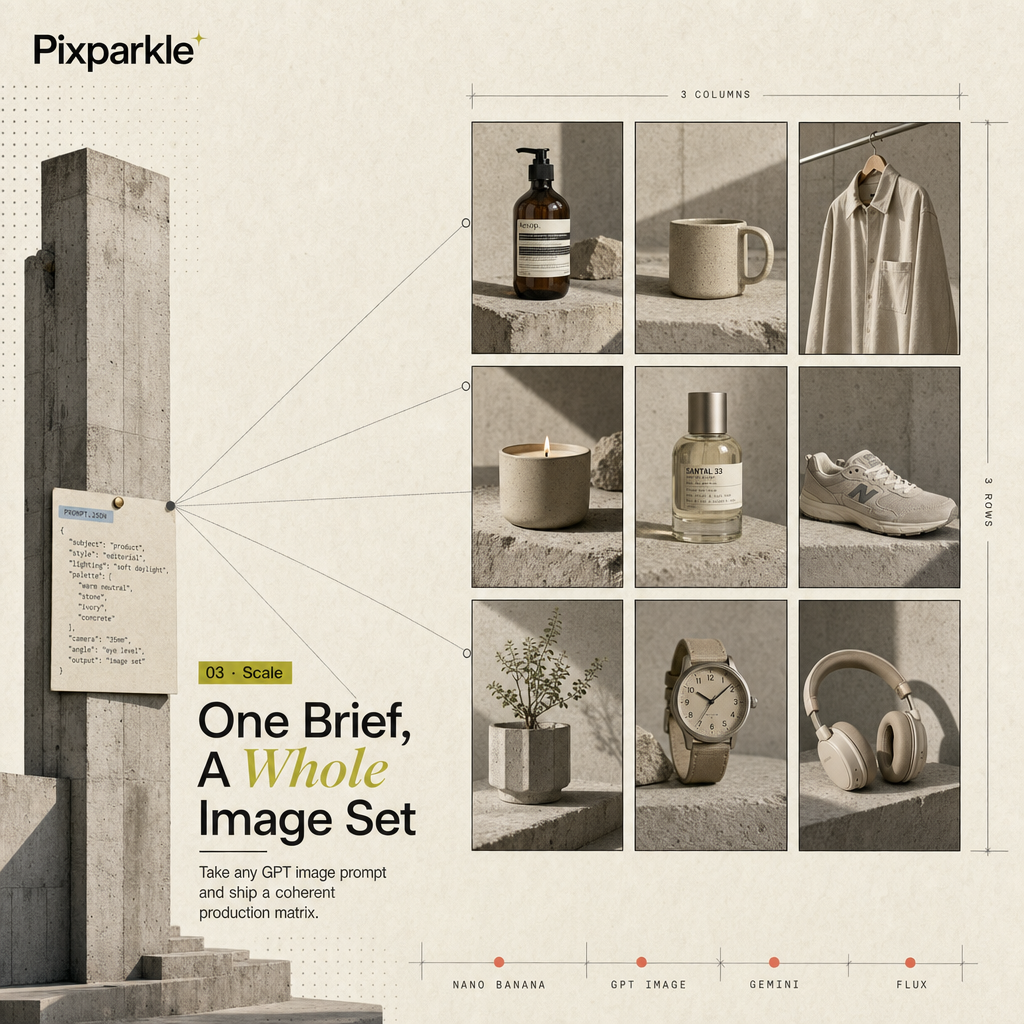
From GPT Image Prompts to Production Image Sets
Your prompts should outlive any single model. Whether you are running GPT Image Prompts today or switching to Gemini Image or Flux tomorrow, a structured prompt travels with you. Ship coherent image matrices and full production sets, not isolated one-off heroes that drift from your brand.
Save Any Prompt as a Reusable Prompt Template
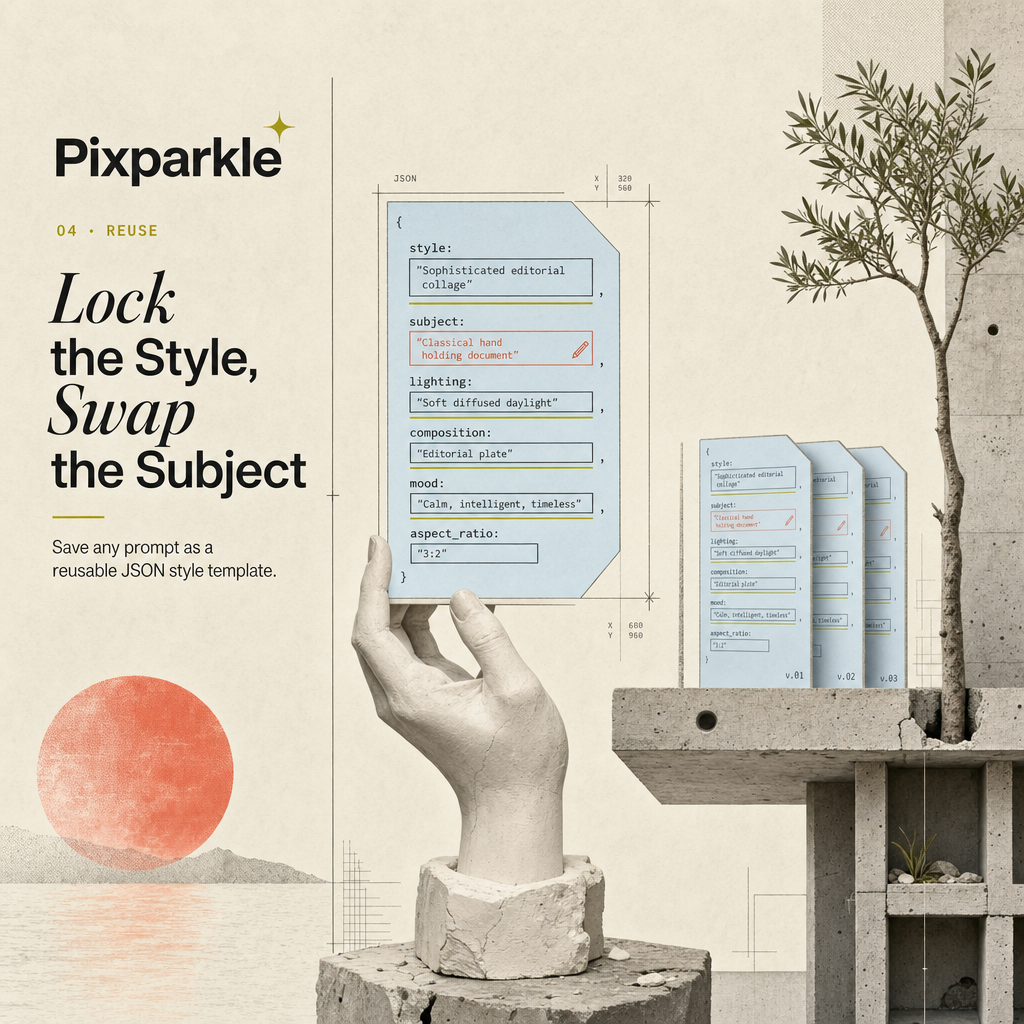
A great prompt used once is a wasted asset. Lock your best style decisions into a JSON template and swap only the subject for the next image. Your lighting, composition, and mood stay consistent across every image in the series without hunting through chat history.
AI Image Prompts for Designers, Marketers, and More
Whether you ship brand visuals, product listings, or educational content, there is a curated prompt and a generator workflow built for your use case.
Designers
Ship concept boards and style explorations faster by pulling from tested prompts instead of starting cold.
Marketers
Ship campaign visuals and ad variations at scale without waiting on a creative team or a photo studio.
E-commerce sellers
Produce on-brand product imagery for listings, storefronts, and seasonal campaigns without booking a photographer.
Content Creators
Feed your social calendars and thumbnails with a steady stream of on-brand visuals generated from one reusable prompt.
Indie Developers
Prototype in-app art and store assets without a design budget, using structured prompts to keep your visual identity consistent.
Educators
Build visual lesson materials and presentation graphics that match a consistent classroom aesthetic.
AI Image Prompt Generator for Reusable Prompts
Paste any rough idea. Our generator answers the 9 designer questions for you and returns a ready-to-paste AI image prompt; optionally save it as a JSON style template.
Build Reusable Prompts With JSON Style Templates
Move from copying natural-language prompts to crafting JSON style templates you can version and reuse. Three steps from beginner to prompt author.
The 5-Part Prompt Template Formula
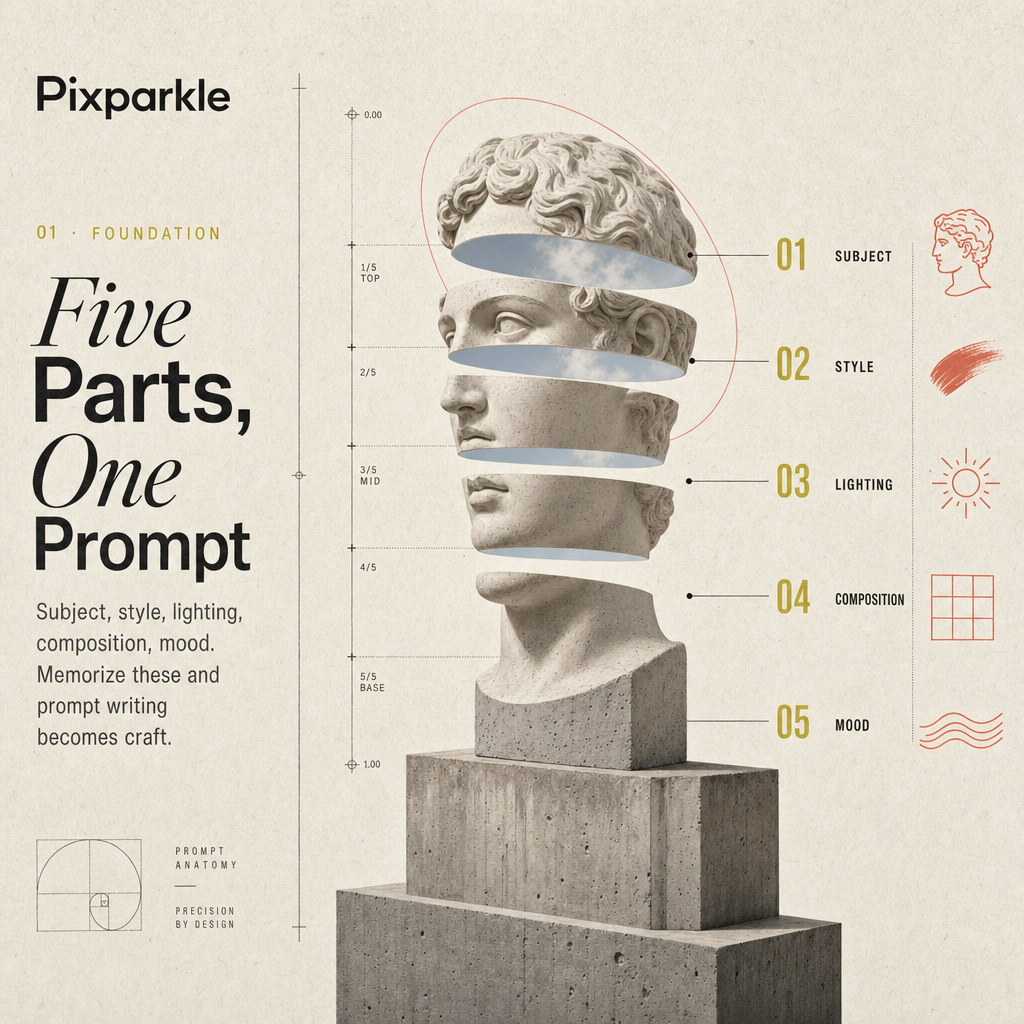
Every strong AI image prompt is built from five parts: subject, style, lighting, composition, and mood or material. Once you can fill all five from memory, you stop relying on inspiration and start treating prompt writing as a repeatable craft. Start by writing each part as a separate sentence in plain English. Name your subject with at least one concrete detail. State the lighting type and direction explicitly. Choose one style anchor and do not mix it with a second. Assign a mood word rather than letting lighting carry the emotional register alone. The five-part formula is the foundation every JSON template is built on; mastering it makes everything that comes next feel obvious.
Try the Generator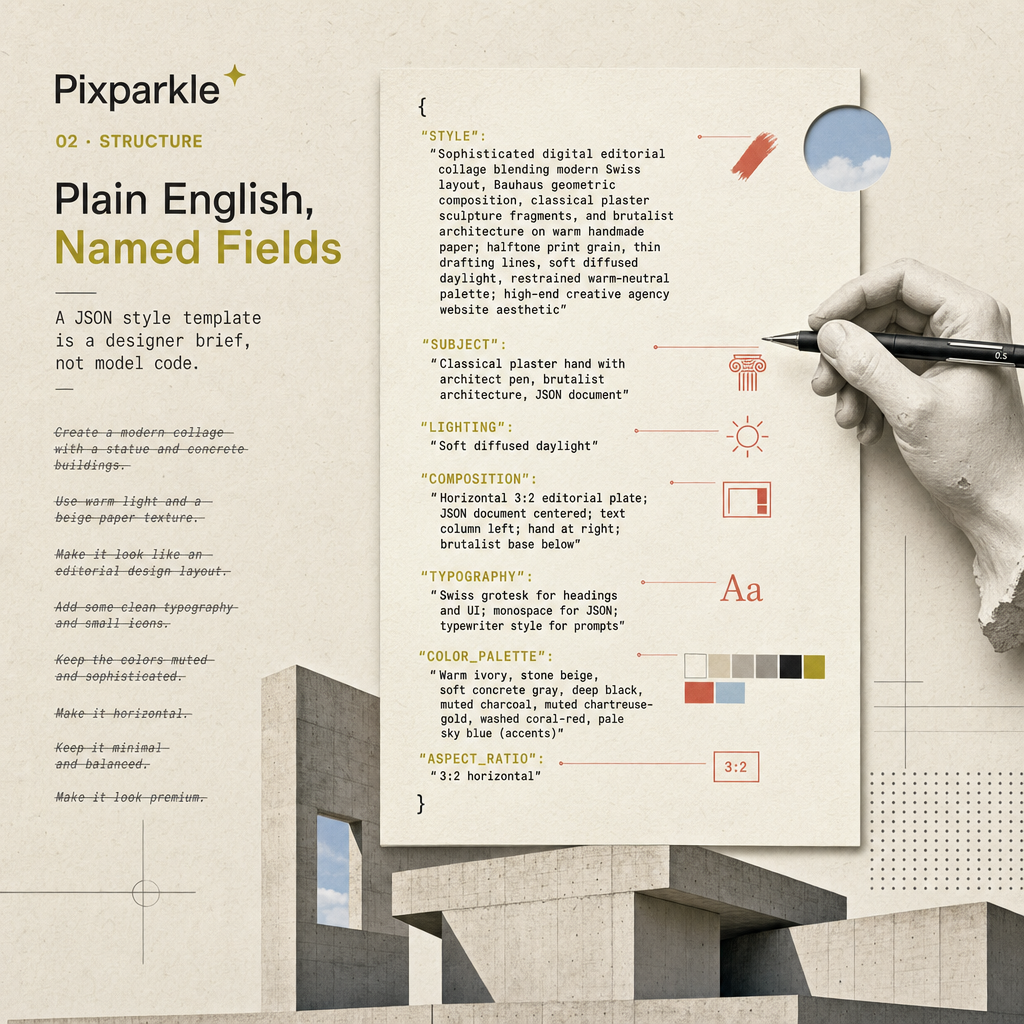
Save Any Style as a Reusable JSON Style Template
Once you have a prompt that produces the look you want, do not leave it in a chat window where it will disappear. Use the generator above to produce a JSON template version of your prompt. A JSON template turns your five parts into named fields: style, subject, lighting, typography, aspect_ratio. Now you have a brief you can open, swap the subject and scene, and paste back into chat. The output stays coherent across ten images or a hundred because the style, lighting, and composition fields never change. One template becomes your brand's visual rulebook. Swap variables as needed and the model cannot drift from the look you locked in the first generation.
Generate JSON Template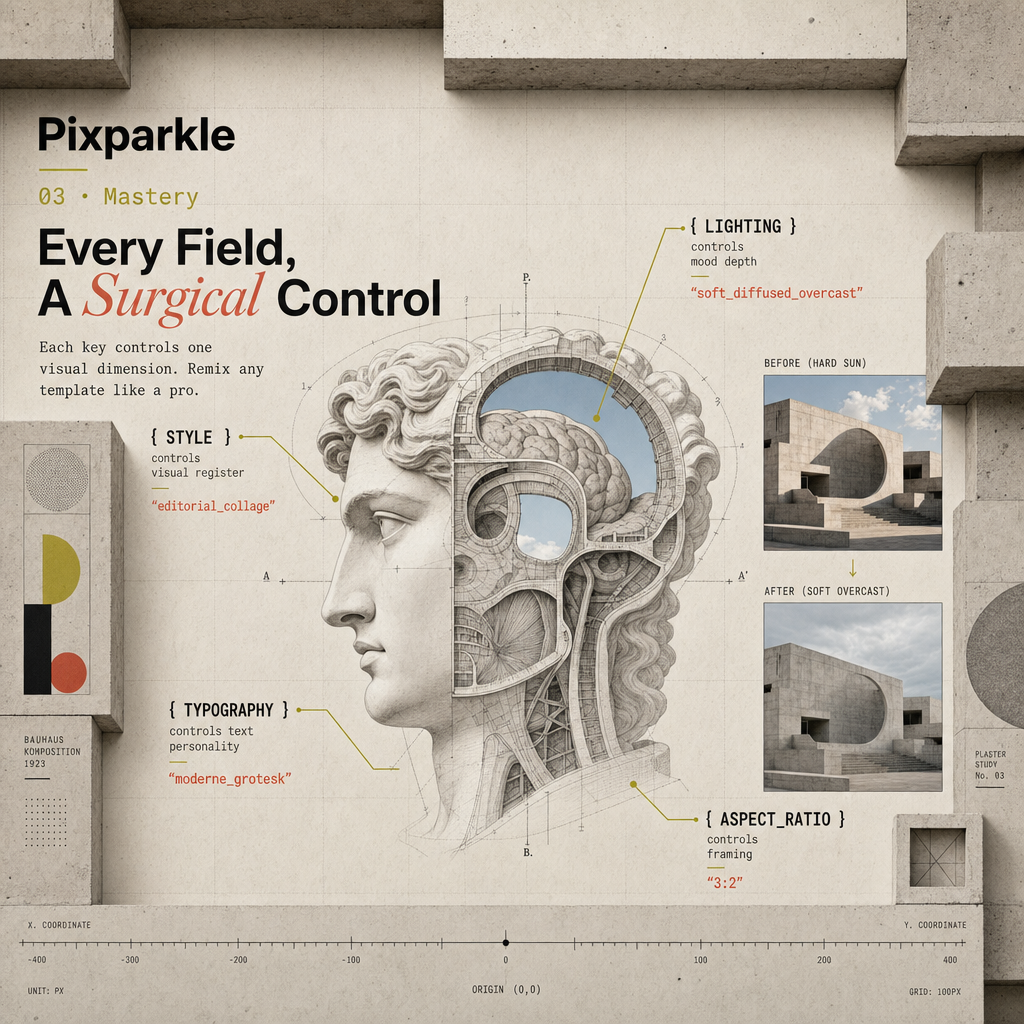
Understand Every JSON Prompt Field Like a Pro
A JSON prompt is not code the model executes. It is a structured designer brief you write in plain English using named fields, and that level of surgical control is what separates a prompt author from a prompt copier. Each key tells you exactly which variable controls which output dimension: the style key locks the visual register, the lighting key drives mood and shadow depth, the typography key defines text personality, the aspect_ratio key determines composition framing. When you know what each field controls, you can remix any template into something original rather than tweaking blindly. Change the lighting field from "hard afternoon sunlight" to "soft diffused overcast" and the whole emotional register of the image shifts without touching any other field.
Read the JSON Prompt GuideAI Image Prompts FAQ: Generator, Library, JSON
Common questions about AI image prompts, the AI image prompt generator, and JSON style templates.
AI image prompts are text instructions that tell an AI image model what to generate. They range from a single sentence to a structured JSON template with named fields. A strong prompt includes a subject, a visual style, a lighting condition, a composition, and a mood or material. The more specific each part, the more predictable the output.
A JSON prompt is a plain-text file that organizes your image brief into named fields: style, subject, lighting, typography, aspect ratio, and so on. It is not a command the model executes. It is a structured designer brief that you write once and swap variables on for each image in a series. The model reads the content of your fields, not their JSON syntax. The value is human readability and reuse, not technical configuration. For the full deep dive on the six-block structure and how it ships consistent character series across 5 models, see What Is a JSON Prompt?.
Paste any rough idea into the AI image prompt generator text field. The generator applies the five-part formula (subject, style, lighting, composition, mood) to expand your input into a complete, copy-ready prompt. It also outputs a JSON style template version so you can save the result as a reusable brief. Copy either output and paste it into any image model you use.
No. The prompt library gives you tested prompts you can copy immediately. The AI image prompt generator handles the expansion for you. Copy any prompt from the library, tweak the subject or mood, and paste it into chat. Pixparkle is designed so you can start with plain language and use the prompt tools as an optional layer when you need consistency across a series.
Use the five-part formula: [Subject] + [Style] + [Lighting] + [Composition] + [Mood / Material]. Lead with the subject. Name the lighting explicitly. Assign roles to colors. Include aspect ratio. Quote any text that must appear in the image. Keep prompts between 200 and 400 characters. If you want a series of images with a consistent look, build a JSON style template and swap only the subject and scene fields across each generation.
The prompt text itself is provided for personal and commercial use. Images you generate on Pixparkle using these prompts include full commercial use rights on all paid plans. You can use the outputs for Amazon listings, Shopify stores, social media ads, print materials, and any other commercial purpose. For the free tier, commercial use is also allowed on outputs. Review the Terms of Service for any edge cases involving in-world brand names or protected likeness.
The prompts in this library are tested on Nano Banana, Nano Banana Pro, Flux Fast, Gemini Image, and Seedream. Photorealistic prompts perform best on Nano Banana and Nano Banana Pro. Speed drafts work well on Flux Fast. Multilingual text prompts are strongest on Gemini Image. Stylized and painterly prompts produce the best results on Seedream. Pick the model that fits your style first; the same prompt text reads cleanly across all five.
Yes. The same library doubles as Nano Banana Prompts, GPT Image Prompts, Flux Image Prompts, and Gemini Image Prompts. The trick is the JSON style template: keep the subject and composition fields stable, then swap the style or lighting fields when you change models. A photoreal prompt that lands on Nano Banana usually needs a softer style descriptor on Flux to avoid over-rendering. Save the template once, edit two fields per model, ship the same series everywhere.
Most prompt libraries are flat lists of copy-and-paste text. This library is structured around reusable JSON style templates and a 3-step prompt mastery path (5-Part Formula, JSON Style Templates, Field-by-Field Mastery). Each prompt is designed to be a starting variable, not a fixed output. The AI image prompt generator on this page expands rough ideas into ready-to-copy prompts in seconds, so you can run any template immediately without switching tools.
Yes. Use the JSON style template output from the AI image prompt generator to capture your prompt as a structured brief. Copy it to a document, a Notion page, or any text editor. When you need the next image in your series, open the template, swap the subject and scene fields, and paste it into chat. Future Pixparkle updates will support saving templates directly in your account.

Studio-quality AI images in one chat session. 10 free credits. No card.
Stop Guessing. Start Generating.
Browse our curated AI image prompts, generate refined prompts in seconds, and save any result as a reusable JSON style template. Everything you need to produce a consistent image series is here.